Breaking the CG Look: Pro Paintover Workflow in Photoshop (Smudge, Mixer Brush, Grain, Edge Control)
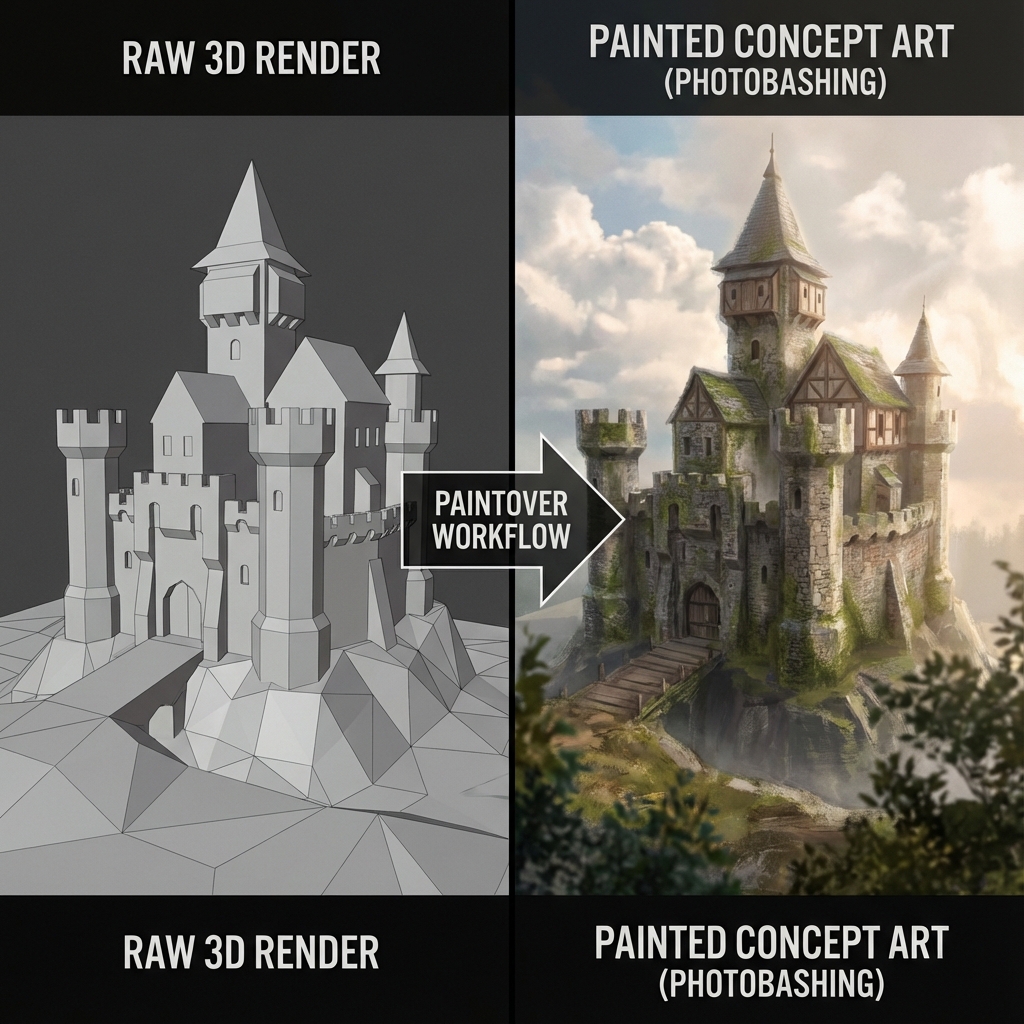
If your image looks like a raw render, it will feel cold—even if the modeling is great. Concept art is designed imperfection: controlled edges, painterly transitions, and storytelling texture.
This guide is a high-demand bridge workflow: how to turn Blender output into professional concept art using Photoshop.
0. The 10-Minute “Render-to-Concept” Stack
Before you paint anything, set up a repeatable stack:
- Render base (Beauty)
- AO pass (Multiply 10–40%)
- Curves/Levels (value control)
- Color grade (Gradient Map or LUT)
- Texture overlay (paper/grunge)
- Edge control (smudge + paint)
- Lens + grain (final unification)
Professionals don’t “wing it”—they reuse stacks.
1. Edge Control: The Real Secret (Not “Soft Light”)
CG looks CG because edges are too consistent and too sharp.
1.1 Lost-and-found edges (traditional painting rule)
- Found edges: sharp, high contrast (focal point)
- Lost edges: softened, low contrast (secondary areas)
Goal: Your focal area gets the best edges. Everything else supports it.
1.2 The Smudge Tool workflow
- Tool: Smudge Tool
- Brush: textured/spatter brush (not round)
- Strength: 60–90% (stronger for silhouette breaks)
Technique
- Pull background into subject and subject into background.
- Smudge across the edge (not along it) to create natural mixing.
- Do this more in shadow areas than in highlights.
Common mistake: Smudging everything. Keep it selective.
2. Destroy “Perfect Surfaces” With Unified Texture Frequency
A clean render reads like plastic.
2.1 Global texture overlay (fast)
- Paste a high-res paper/concrete/grunge image.
- Blend mode: Overlay / Soft Light
- Opacity: 10–35%
2.2 Local texture masks (pro)
- Put texture overlay on top.
- Add a mask.
- Reveal texture mostly in midtones and shadows.
- Keep highlights cleaner (so you don’t dirty specular too much).
Why this works: It adds a consistent “tooth” so all elements feel like one image.
3. Mixer Brush: Make the Render Feel Hand-Made
Use this when textures stretch, shading feels “low poly,” or materials clash.
Settings starting point
- Wet: 50%
- Load: 50%
- Mix: 50%
- Flow: 50%
- Sample All Layers: ON
Use cases
- Blend hard transitions between materials.
- Paint over noisy areas.
- Smooth polygon shading while keeping form.
Pro tip: Use smaller brush sizes around the focal point, larger brushes elsewhere.
4. Add Optical Imperfections: Grain, Bloom, Micro-Blur
Digital perfection is the enemy.
4.1 Film grain (mandatory)
Filter > Camera Raw Filter > Grain- Keep it subtle. You want unification, not “Instagram noise.”
4.2 Micro-blur (kills pixel sharpness)
- Duplicate flattened layer
Filter > Blur > Gaussian Blur (0.3–0.8px)- Mask it so blur hits background/secondary areas.
4.3 Bloom / light bleed (cinematic)
- Duplicate highlights
Gaussian Blur- Blend: Screen or Linear Dodge (Add)
5. Paintover Priorities (What to Fix First)
If you only have 20 minutes, do these in order:
- Readability: silhouette, focal point, value grouping
- Edges: soften non-focal edges
- Material clarity: metals read like metal, cloth reads like cloth
- Story details: one or two narrative props
- Final grade: unify color and contrast
6. Quick “Concept Art Finish” Checklist
- Focal point has sharpest edges + highest contrast
- Secondary areas have softer edges and reduced contrast
- Global texture frequency is consistent
- Grain added (subtle)
- Slight vignette + controlled bloom
Exercises
- Paintover challenge: do 3 paintovers of the same render—realistic, painterly, graphic.
- Edge study: 5 minutes only—fix edges and nothing else.
- Texture unification: try 3 overlays and compare.
Conclusion
Breaking the CG look is not magic—it’s edge control, texture unification, and lens realism. With a repeatable paintover stack, you’ll turn any 3D base into concept art that feels authored, not rendered.
Next and Previous
- Previous: Sketching for Production: Thinking Before 3D
- Next: Render Recovery in Photoshop: Fix Lighting, Pose, Materials, and Composition Without Re-Rendering